

Initial deployment
Create a new EC2 instance
- On the EC2 home page, click Launch Instance:
- Choose a name for your instance and configure the following settings:
- Application and OS Images (Amazon Machine Image)
- Choose Ubuntu as the instance image, as it simplifies Docker installation. Ubuntu Server 24.04 LTS was the latest available version when this guide was written.
- Keep 64-bit (x86) as the instance architecture.
- Instance type. The t3.large instance type provides decent performance. You can choose a different type according to your needs, but it’s not recommended to select a size smaller than t3.medium.
- Key pair (login). Creating a new SSH key pair is recommended but not mandatory.
- Network settings. Allow SSH traffic from your own IP address:
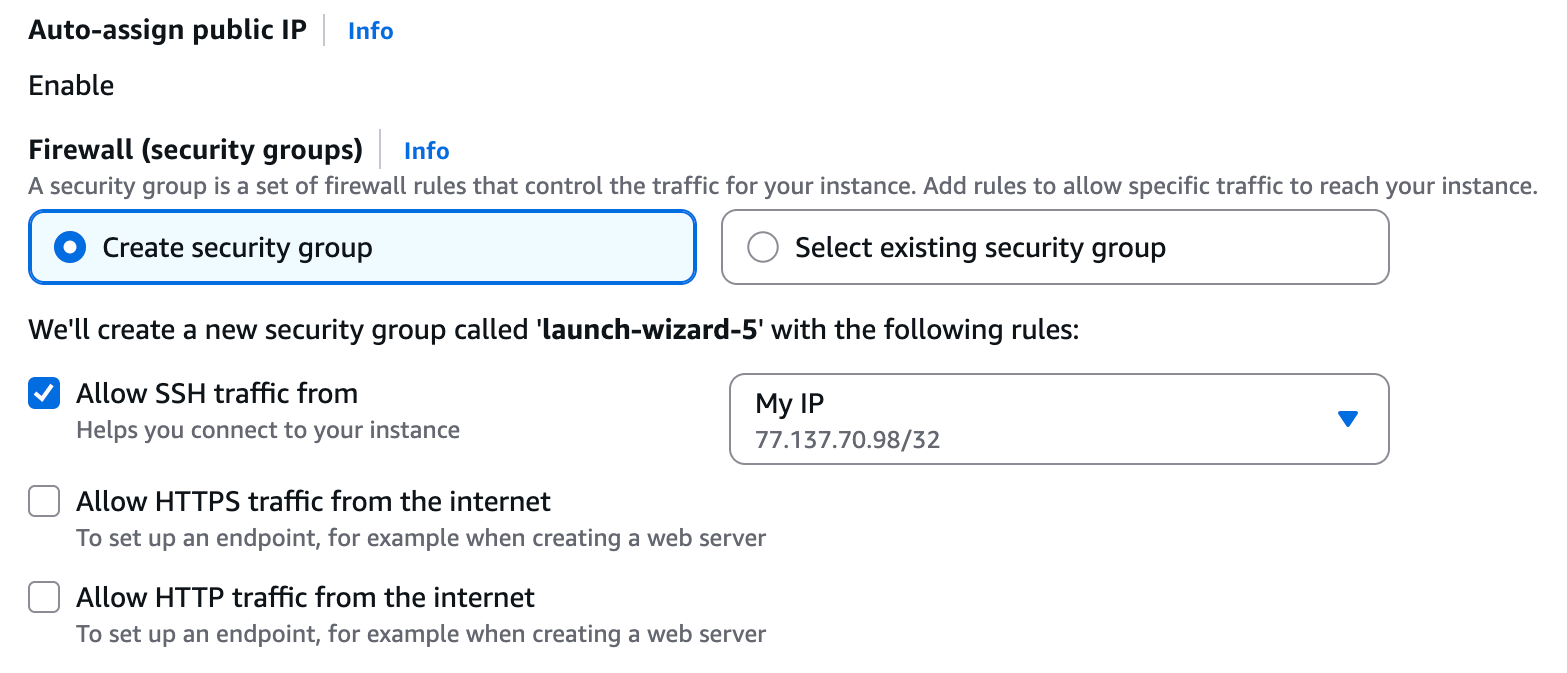
- Configure storage. Choose 50GB to ensure you have enough space for Docker images and databases.
- Application and OS Images (Amazon Machine Image)
- In the Summary section on the right, click Launch instance:
- Once the instance is launched, navigate to instance details by clicking the instance ID:

- Configure the network settings and open the necessary ports:
- Open the Security tab, then click on the security group.
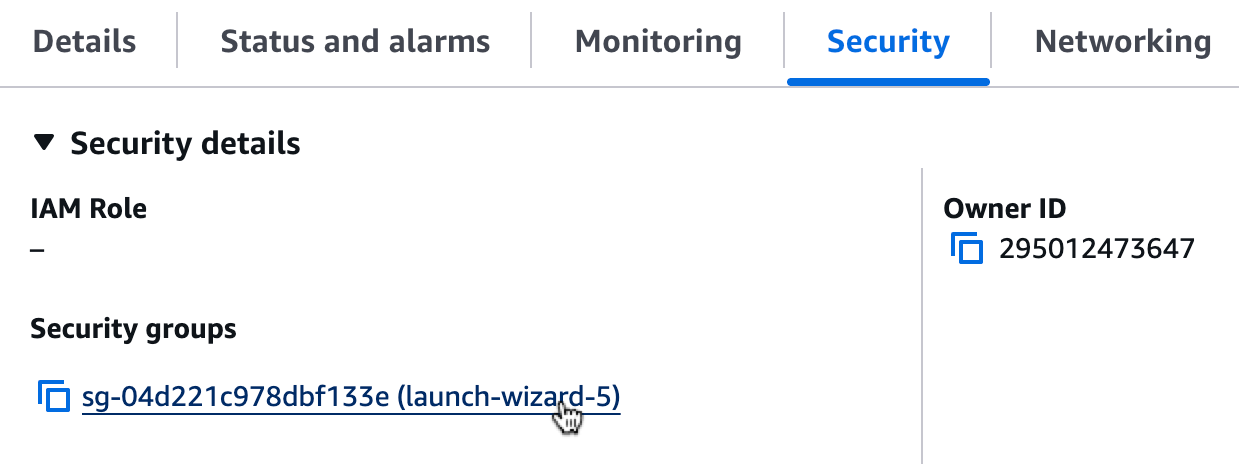
- Click Edit inbound rules.
- Add two new rules by clicking Add rule each time:
- In the first rule, for Type, choose HTTP, and under Source, select My IP.
- In the second rule, for Type, choose SSH. Click the text field next to Source, and search for
ec2-instance-connect. Select the prefix list with the full name similar tocom.amazonaws.us-east-1.ec2-instance-connect, depending on your region. This allows you to connect to the instance via AWS CloudShell.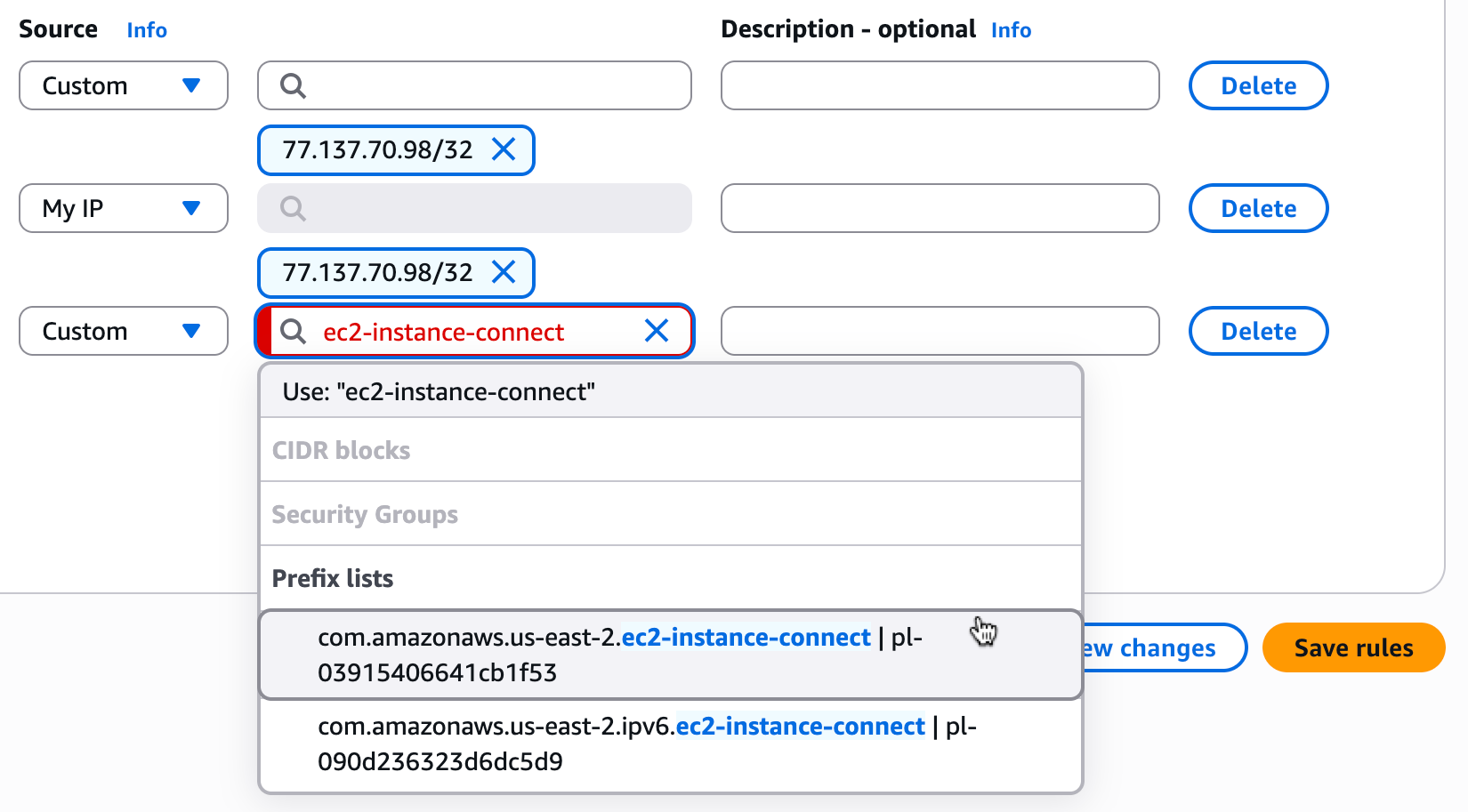
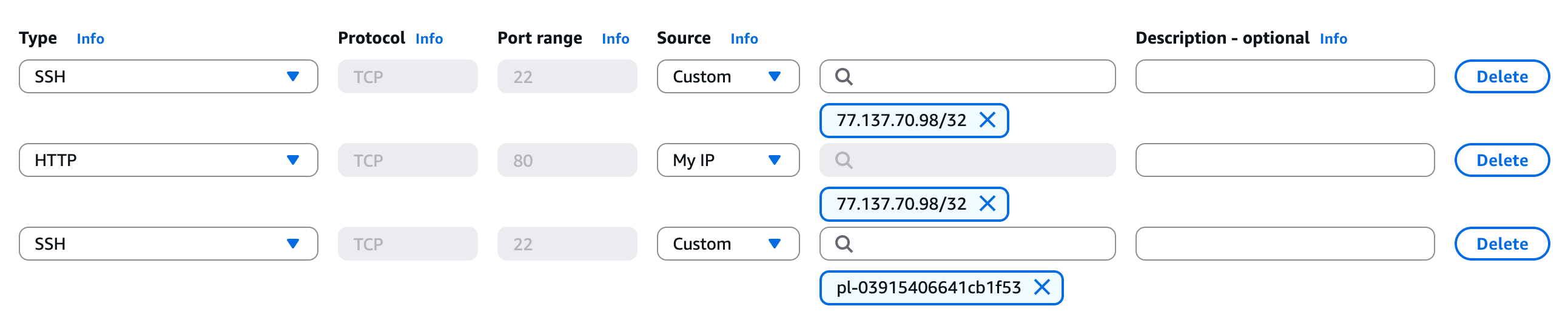
- Click Save rules to finish the configuration.
- Open the Security tab, then click on the security group.
Connect to the instance with CloudShell
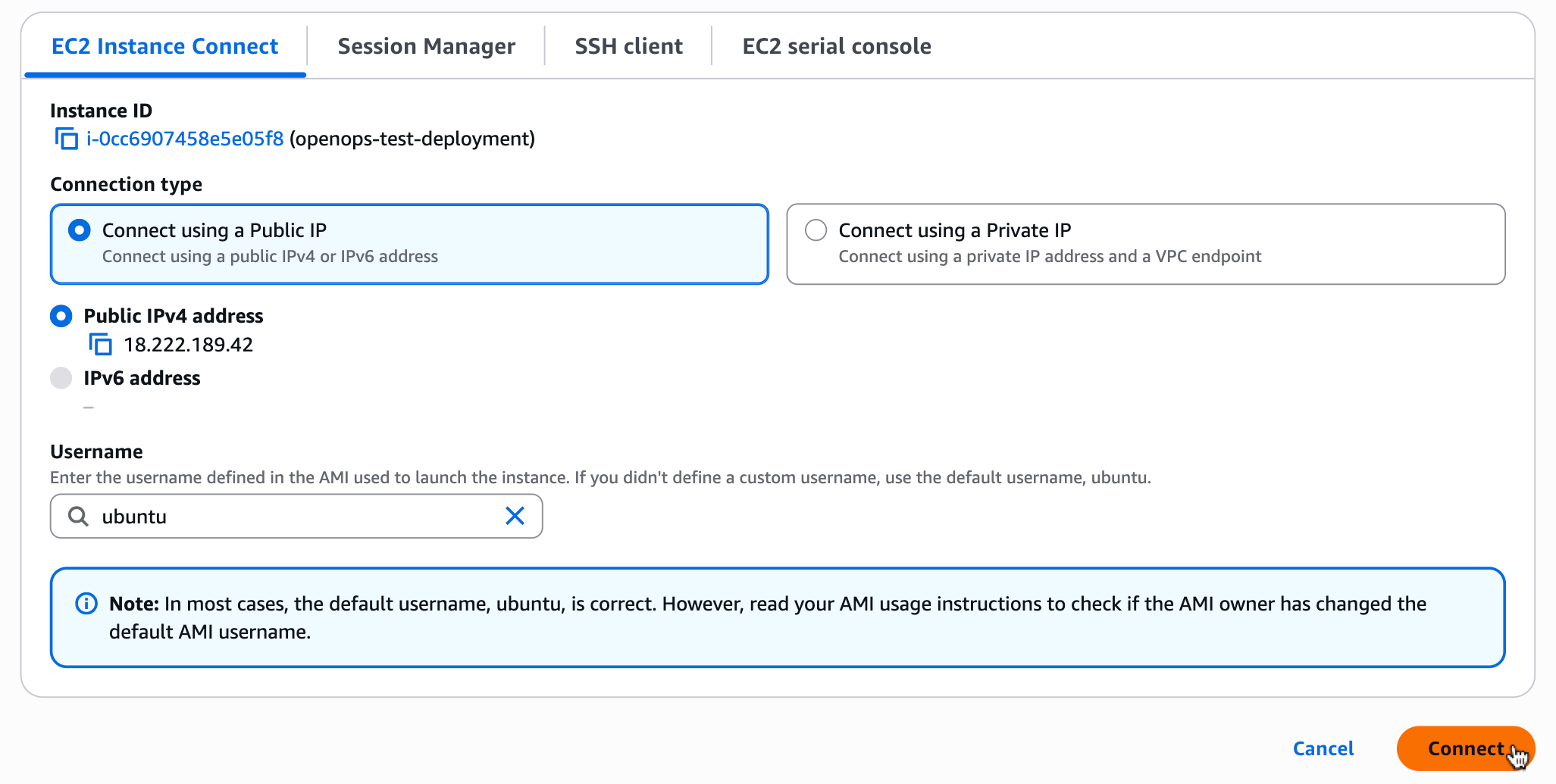
- Back in the instance details view of your EC2 instance, and click Connect.
- In the Connect view, use default connection settings and click Connect again, then wait for CloudShell to initialize an in-browser session.
Install OpenOps
Run the following command in your terminal to install, update, configure and run OpenOps:http://20.20.20.20).
Network ports used by OpenOps
By default, OpenOps does not require any inbound ports other than the application port80.
The following ports are used by bundled services and, in most cases, should not be exposed:
5432: The PostgreSQL database used by OpenOps. Expose this port only if you need direct database access, such as for connecting OpenOps to external analytics tools. Restrict access to a VPN or a trusted IP range.6379: OpenOps’ internal Redis service. Expose this port only if required for debugging or monitoring purposes. Restrict access to a VPN or a trusted IP range.
External databases
To use external PostgreSQL or Redis databases, modify the relevant variables in the.env file. You can disable the corresponding containers by adding a profile in the docker-compose.yml file:
db profile in .env or in Docker Compose, that container won’t start.
After making any changes to the .env file, restart the OpenOps containers:
Enabling TLS
For production usage, it’s recommended to enable TLS (HTTPS). In addition to the security aspect, this also ensures that workflow templates load properly in all browsers.Automatically
The easiest way to enable TLS is to use an OpenOps script that requests and sets up a TLS certificate from Let’s Encrypt. Before running the script, make sure you have a domain name that points to your ‘s external IP address. If you’re configuring DNS right before running the script, you may need to wait for the DNS change to propagate.- Run the following command in your terminal:
- When prompted, enter a domain name that points to the external IP address of your .
- When prompted, enter an email address to receive certificate-related notifications from Let’s Encrypt.
Manually
Alternatively, you can create a TLS certificate yourself. This lets you use DNS validation from Let’s Encrypt (rather than the HTTP validation the automatic script performs) or request a certificate from a different provider. To set up TLS manually:- Obtain certificate and private key files from your certificate provider.
- Upload the certificate files to your OpenOps installation under the
tlsdirectory:<OpenOps installation path>/tls/cert.pem(certificate file)<OpenOps installation path>/tls/key.pem(private key file)
- Open the
.envfile in your OpenOps installation directory and update the following variables:- Set
OPS_NGINX_CONFIG_FILEtonginx.gateway.tls.conf - Set
OPS_PUBLIC_URLto the secure URL of your OpenOps installation (e.g.https://openops.example.com)
- Set
.env file, restart the OpenOps containers:
Disabling host validation
By default, OpenOps does not allow workflows to call internal network addresses such as127.0.0.1 or 192.168.0.0. This affects HTTP and SMTP actions, as well as webhook triggers. Host validation protects users from creating workflows that could accidentally or maliciously access internal services, scan networks, or escalate privileges.
You may need to disable this check in certain circumstances, such as in non-production deployments or when workflows intentionally interact with internal-only infrastructure.
To disable host validation, open the .env file in your installation folder and set the OPS_ENABLE_HOST_VALIDATION environment variable to false.
After making any changes to the .env file, restart the OpenOps containers:
Configuring allowed SMTP ports
By default, OpenOps allows SMTP connections on ports 25, 465, 587, and 2525. Administrators can customize which SMTP ports are available by setting theOPS_SMTP_ALLOWED_PORTS environment variable in the .env file.
To configure allowed SMTP ports, open the .env file in your installation folder and set the OPS_SMTP_ALLOWED_PORTS variable to a comma-separated list of port numbers:
Port numbers must be valid TCP ports in the range 1-65535. At least one valid port must be configured. Invalid port numbers will be filtered out.
.env file, restart the OpenOps containers: